This Standard Operating Procedure (SOP) provides a guide on how to join an existing AWS Organization by accepting an invitation.
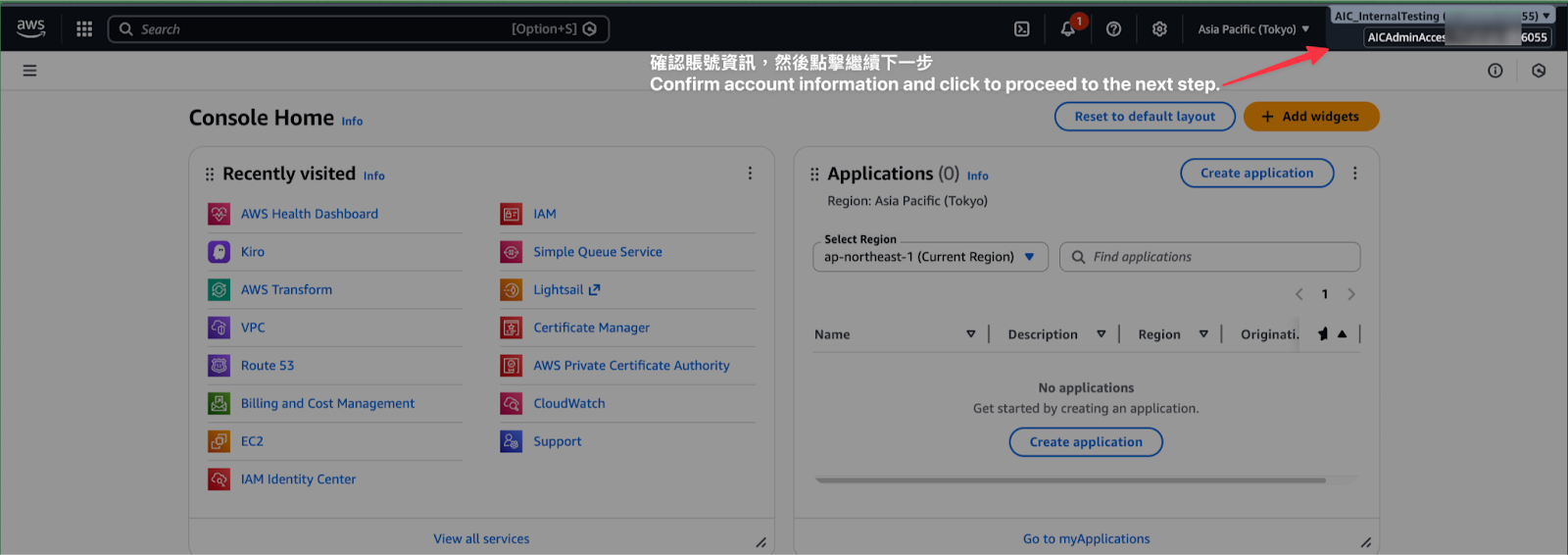
Step 1: Enter the Account Menu
Log in to the AWS Management Console.
Verify that the account information in the top right corner is correct.
Click your account name to open the dropdown menu.
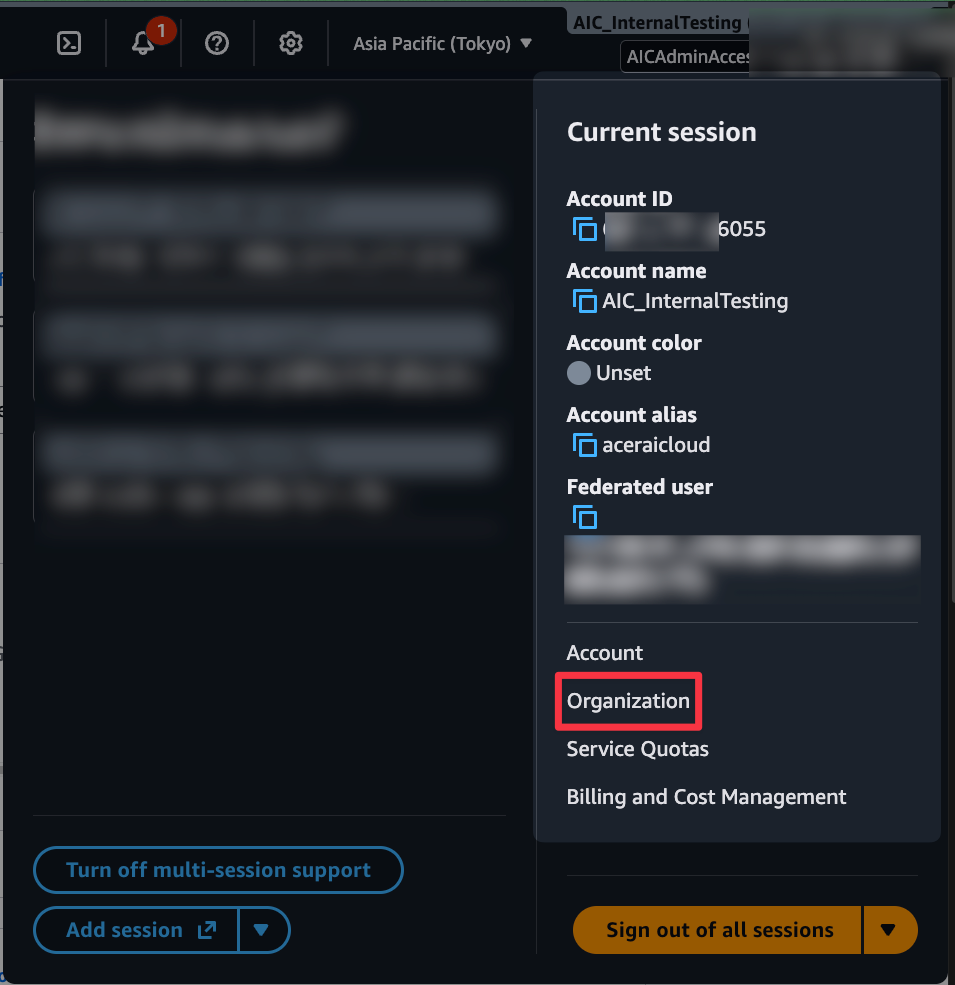
Step 2: Select Organization Settings
From the dropdown menu, click the "Organization" option.
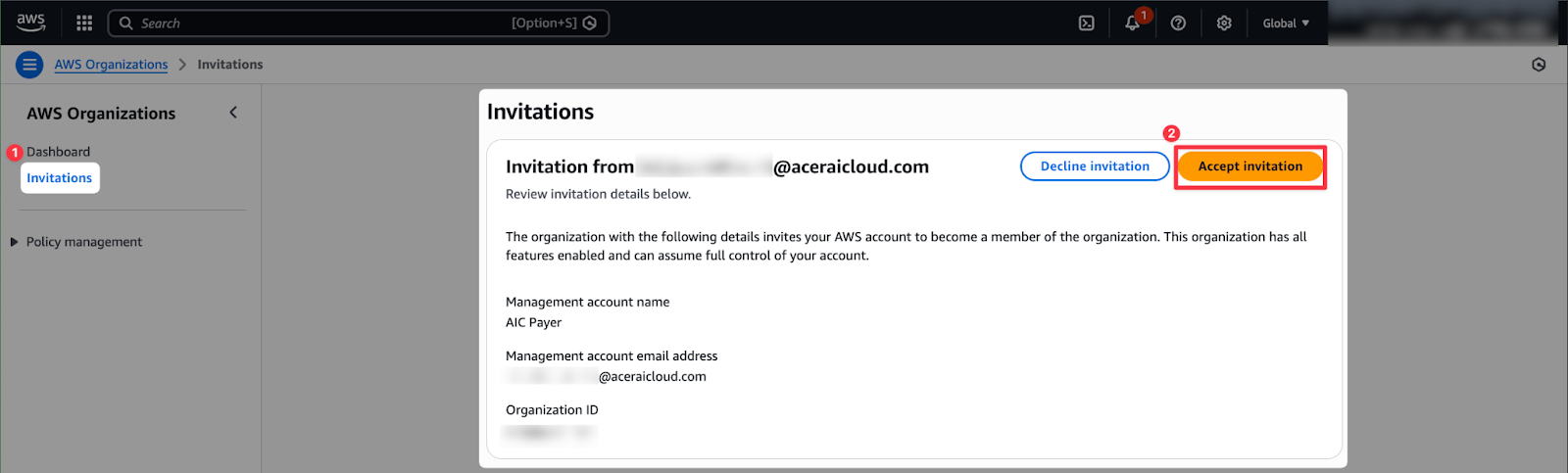
Step 3: Accept the Invitation
On the Invitations page, you will see a request from a management account (e.g., AIC Payer).
Review the details and click the orange "Accept invitation" button.
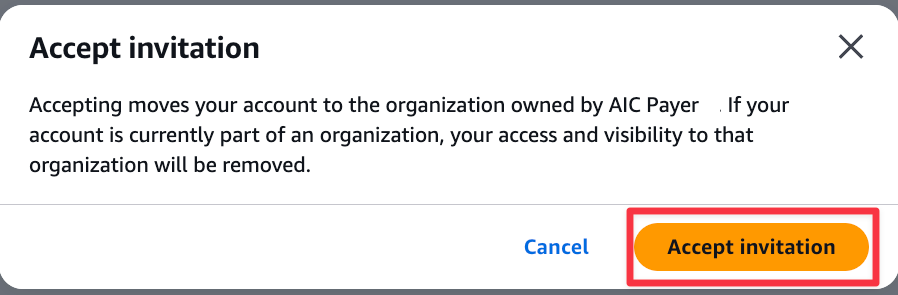
Step 4: Confirm Changes
A confirmation window will appear, noting that this action moves your account to the new organization.
Note: If your account is currently part of another organization, your access and visibility to that previous organization will be removed.
Click "Accept invitation" again to execute the change.
Troubleshooting
If you encounter a red error message stating "Failed to accept the invitation...":
Cause: This usually occurs due to missing IAM permissions or restrictions from a previous reseller.
Solution: Contact your previous reseller to check the Organization Service Control Policies (SCP) and try logging in with the Root account to attempt the process again.

Was this article helpful?
That’s Great!
Thank you for your feedback
Sorry! We couldn't be helpful
Thank you for your feedback
Feedback sent
We appreciate your effort and will try to fix the article